
Delivery information is an important part of the buying decision.
While many stores provide shipping details through delivery pages, FAQs, or shipping policies, customers often need this information while they are deciding whether to purchase.
During a recent CRO review of Artway’s product pages, Flair identified an opportunity to improve delivery messaging by showing estimated arrival dates directly alongside the purchase decision.
The solution was a dynamic delivery banner that displays estimated delivery dates on product pages and adjusts delivery expectations throughout the week.
While Artway needed a more advanced implementation, the same principle applies to any BigCommerce store. Even a simple delivery estimate can provide useful information before customers add products to their basket.
In this guide, we’ll show how to add a basic delivery estimate banner to a BigCommerce product page and explain where more advanced solutions may be useful.
Why Add Delivery Estimates to Product Pages?
The product page is where customers make buying decisions.
Showing delivery expectations near the Add to Cart area helps answer an important question at the right moment, without requiring customers to search through other pages.
Benefits include:
-
Reducing hesitation before purchase
-
Helping customers understand when their order is likely to arrive
-
Providing reassurance alongside the purchase decision
-
Creating a more informative product page experience
Adding a Basic Delivery Banner in BigCommerce
BigCommerce Stencil themes use Handlebars templates, which allow dynamic content to be added directly within theme files.
A simple delivery banner can be created using the built-in date helper:
<div class="delivery-banner">
    <strong>Free delivery</strong> on orders over £50.

    <span>
        Order now to get it between
        <strong>
            {{moment "in 1 day" "MMM DD"}}
            and
            {{moment "in 2 days" "MMM DD"}}
        </strong>
    </span>
</div>
This creates a delivery message that updates automatically each day, so there is no need to edit the dates manually.
Improving the Basic Version
The example above provides a simple delivery window, but many stores will need additional logic depending on how they process and fulfil orders.
Common improvements include:
Adjusting for weekends
Delivery expectations can change depending on when an order is placed.
For example, an order placed on Friday may have a different estimated delivery window compared with an order placed earlier in the week.
Adding delivery rules
Some stores may need different messaging depending on:
-
Product type
-
Stock availability
-
Delivery method
-
Customer location
Adding cut-off times
If orders placed before a certain time are dispatched the same day, this can also be reflected in the delivery messaging.
For example:
Order before 2pm for dispatch today.
Where Should Delivery Information Be Displayed?
The most effective location for delivery messaging is close to the purchase decision.
Common placements include:
-
Below the Add to Cart button
-
Near pricing information
-
Within a product reassurance area
The aim is to provide useful information before customers need to search elsewhere.
Taking Delivery Estimates Further
A basic delivery banner can be a useful starting point for stores with straightforward delivery requirements.
However, many stores need more control over how delivery information is calculated, displayed, and managed.
Examples include:
-
Different delivery rules for different products
-
Delivery estimates based on stock availability
-
Different messaging based on customer location
-
Custom styling to match the store design
-
Managing delivery settings without editing theme files
For Artway, Flair developed a custom delivery estimator that automatically adjusts delivery expectations throughout the week and displays estimated arrival dates directly on product pages.
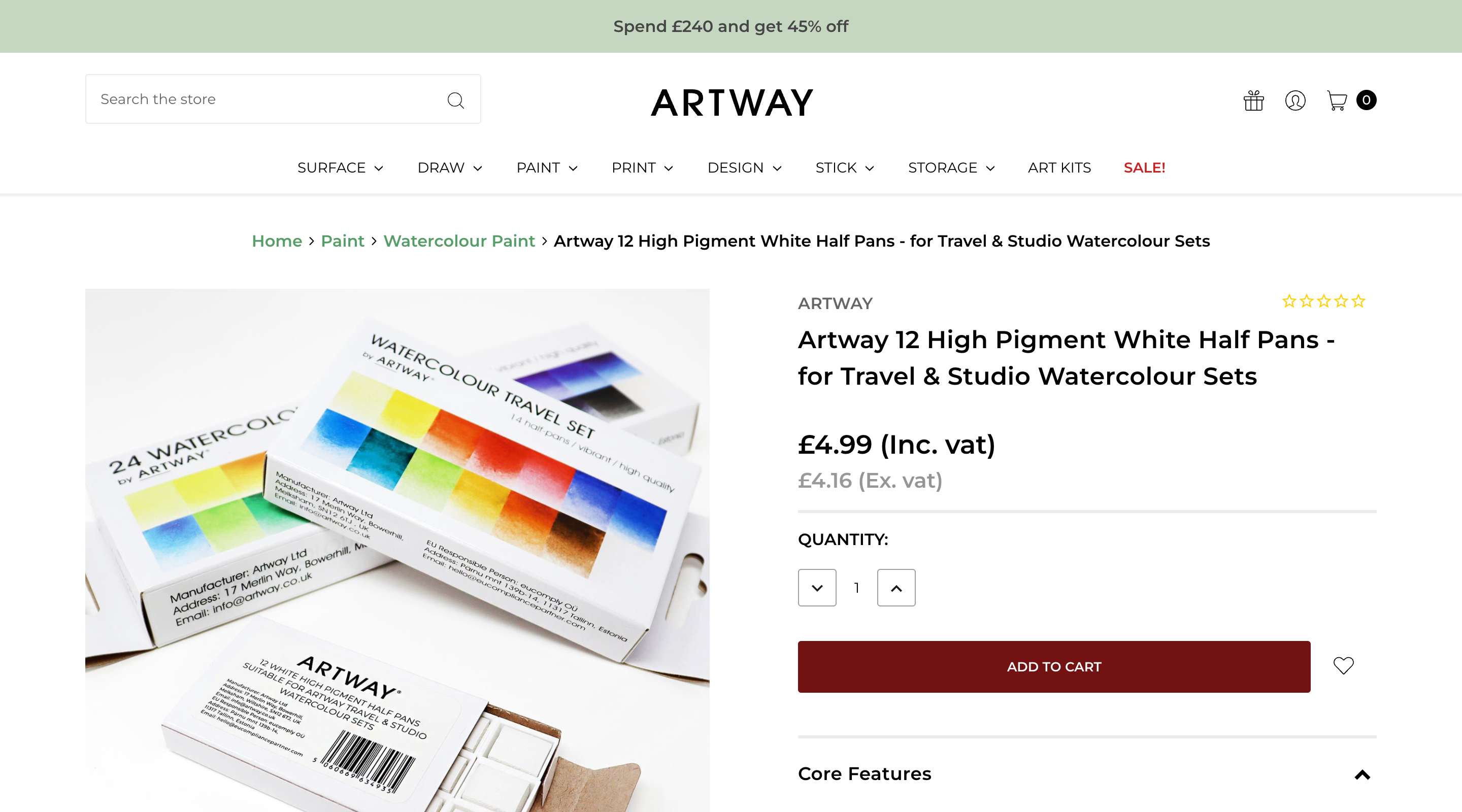
Product page without delivery expectations shown near the purchase area.
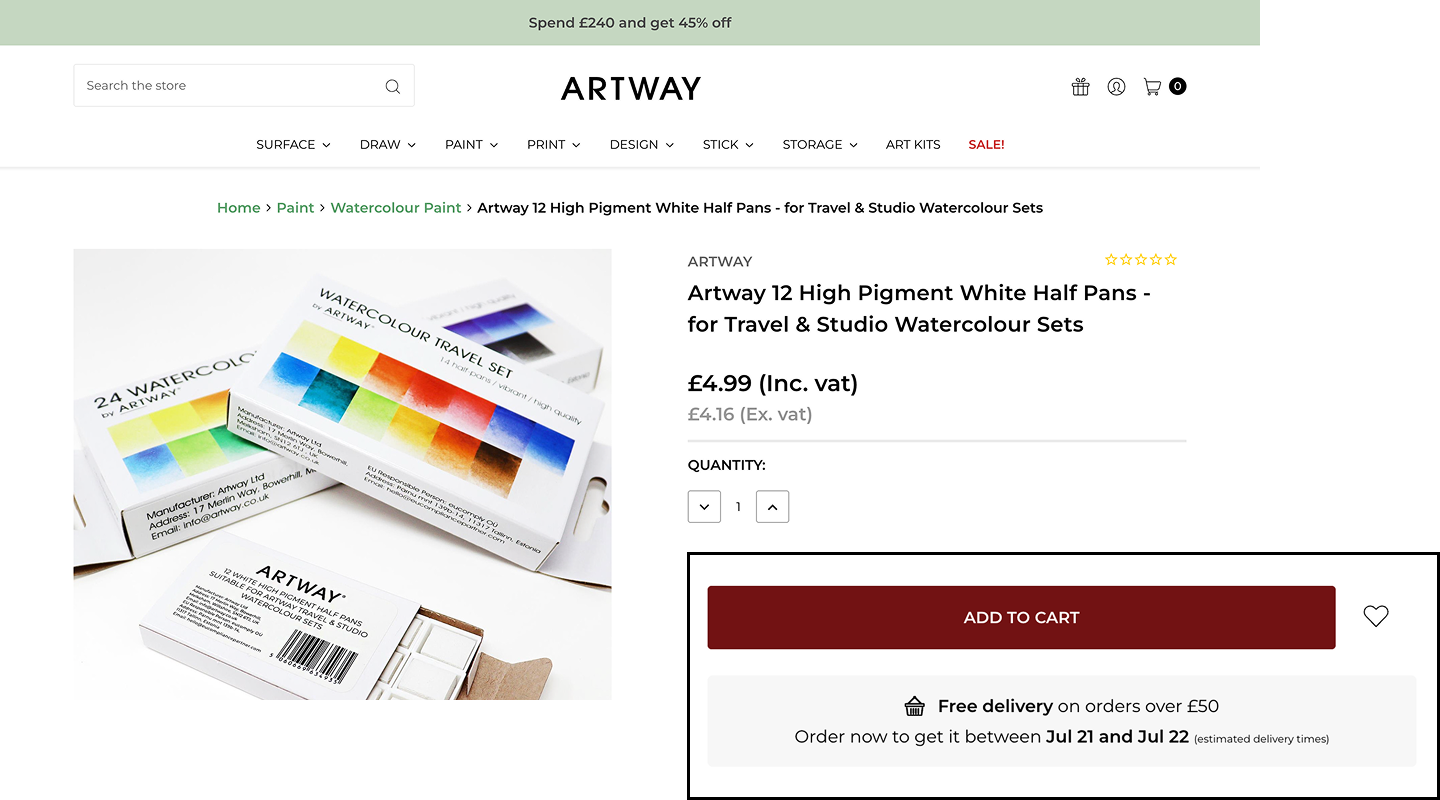
Dynamic delivery estimate added below the Add to Cart button.
This allowed Artway to display more accurate delivery expectations while managing the rules behind those estimates.
A custom solution can also make ongoing management easier by allowing store teams to update delivery rules without editing theme files.
Conclusion
Adding delivery estimates directly to product pages helps answer one of the biggest questions customers have before placing an order.
A basic implementation can be a useful starting point, while stores with more complex delivery rules may benefit from a custom solution that is easier to manage and maintain.