Looking for the Shopify version of this article? Click here to read
Most online shoppers will spend more to unlock free shipping. The problem is, they usually have no idea how close they are to the threshold.
That gap costs you money. Shoppers either don't add enough to qualify, or they abandon the cart because they assume shipping will be expensive. A free shipping progress bar closes that gap by showing customers exactly how much more they need to spend, and it updates in real time as they shop.
We built a version of this for Ichcha's BigCommerce store and saw it drive higher average order values. Now we've created a free, simplified version you can add to your own store.
What the free shipping progress bar does
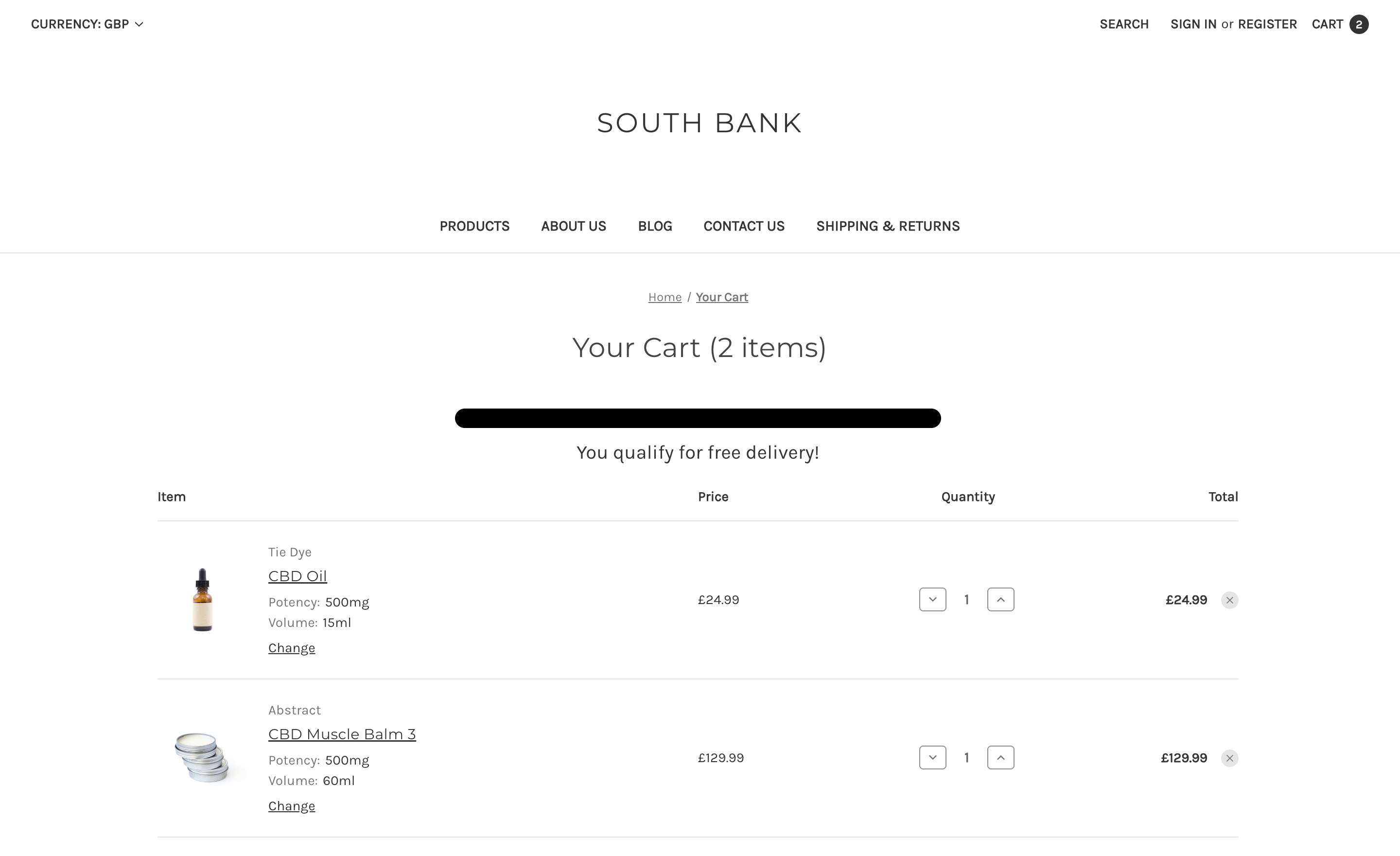
The bar sits at the top of your cart page. As customers add items, it fills up toward your free shipping threshold. When they hit it, the bar completes and a confirmation message appears.
It's a small visual clue that instantly tells your customers where they're at. It drives persuasion and uplift, getting customers to spend more per order because the goal feels within reach.
Free Shipping Progress Bar in Action
Partially Filled Progress Bar on Cart Page
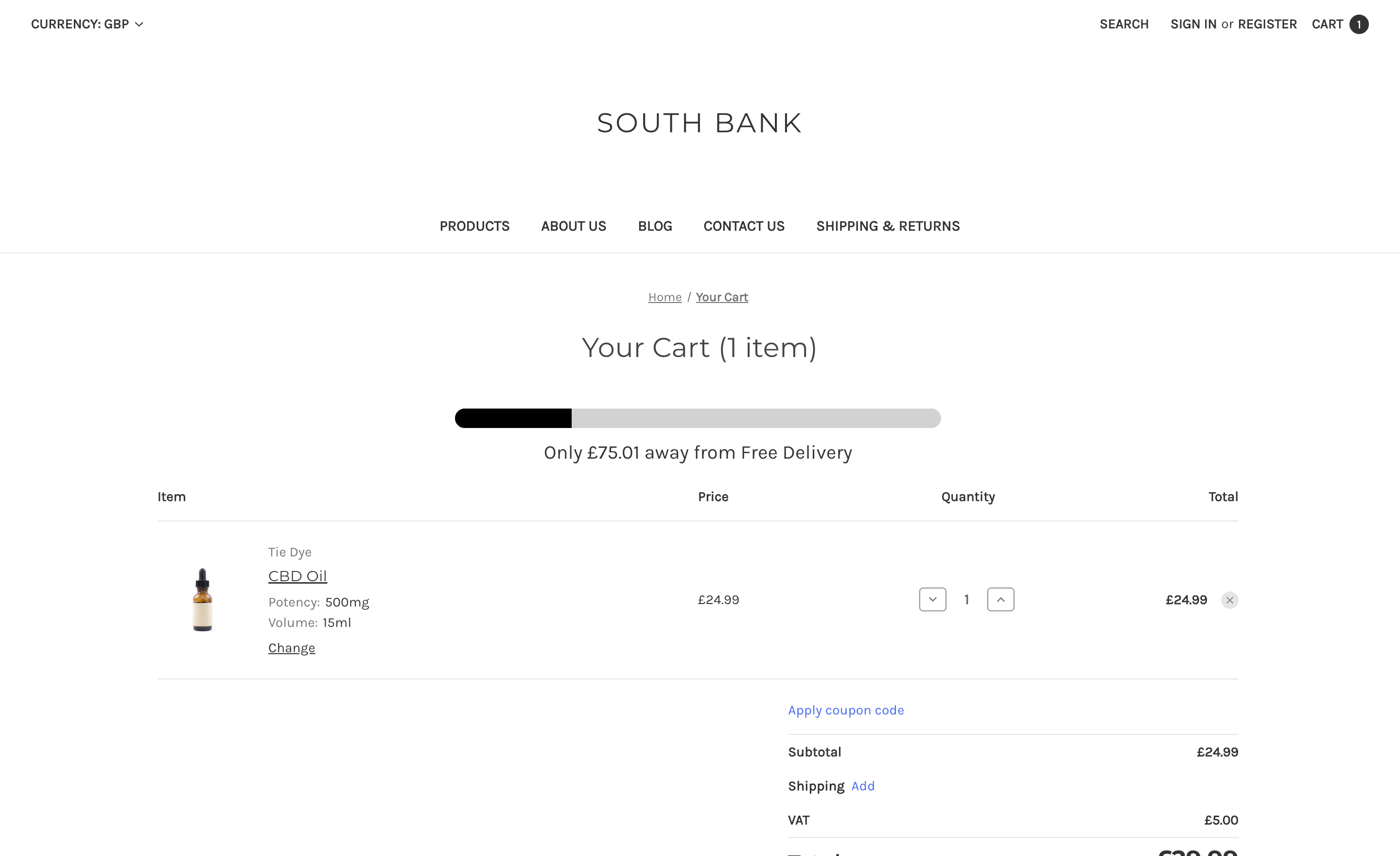
Progress Bar Reaches Free Shipping on Cart Page
Free Shipping Progress Bar Code
The code below adds a basic progress bar to your BigCommerce cart page. It uses BigCommerce's Handlebars templating, so it works within your existing Stencil theme files.
There are two parts: an HTML template that handles the logic and display, and a small block of CSS for styling. The HTML goes into your cart content template file (templates/components/cart/content.html), and the CSS goes into your theme's stylesheet.
The default free shipping threshold is set to £75, but you can change that by editing a single value in the template.
Add to the top of your templates/components/cart/content.html file:
{{assignVar "effectiveTotal" (subtract cart.sub_total.value cart.total_discount.value)}}
{{assignVar "threshold" 75}}{{!-- Change the number to your free shipping threshold value --}}
{{#if (getVar "effectiveTotal") '>=' (getVar "threshold")}}
  {{assignVar "progressPct" 100}}
  {{assignVar "barMessage" "You qualify for free shipping!"}}
{{else}}
  {{assignVar "progressPct" (toInt (multiply (divide (getVar "effectiveTotal") (getVar "threshold")) 100))}}
  {{assignVar "remaining" (toFixed (subtract (getVar "threshold") (getVar "effectiveTotal")) 2)}}
  {{assignVar "barMessage" (concat (concat (concat "Only " settings.money.currency_token) (getVar "remaining")) " away from free shipping!")}}
{{/if}}

<div class="progress-bar-section">
  <div class="progress-bar">
    <div class="progress" style="width: {{getVar "progressPct"}}%; display: block;"></div>
  </div>
  <p class="progress-bar-text">{{getVar "barMessage"}}</p>
</div>
Add the CSS to the bottom of assets/scss/theme.scss or another appropriate CSS file in your theme:
.progress-bar-section {
    font-size: 20px;
    margin-bottom: 20px;
    text-align: center;
}

.progress-bar-text {
    margin: 10px 0 0;
}

.progress-bar {
    margin: auto;
    background-color: rgba(0, 0, 0, 0.2);
    border-radius: 30px;
    overflow: hidden;
    height: 20px;
    max-width: 500px;
}

.progress {
    height: 100%;
    background-color: #000000;
}
This will get a working progress bar onto your cart page. But if you want something that matches your brand, works across your entire checkout flow, and can be managed without touching code, that's where we come in.
What a custom version looks like
The free version covers the basics. A custom build goes further:
Works everywhere your cart does. We can add the bar to your mini cart dropdown, cart preview panel, and anywhere else customers see their basket, so the incentive follows them through your store.
Matches your brand. Custom colours, icons, gradients, and typography that fit your theme.
Managed through your theme editor. Set your free shipping threshold, toggle visibility, and control who sees the bar, all from your theme editor settings. No code changes needed after setup.
Target by customer group. Show different thresholds for wholesale vs. retail customers, or hide the bar entirely for groups that already get free shipping or are excluded from the offer.